







A slow website loses visitors, sales and Google rankings. The good news is that most WordPress websites can become much faster with a handful of changes, without changing the design.
In this guide we look at how to measure speed, what the Core Web Vitals mean and the 10 steps that help most to get a faster WordPress website, including the special care a WooCommerce store needs.
The 10 steps
- Quality hosting
- Page caching
- Optimised images
- Fewer plugins
- A lightweight theme
- Fonts under control
- Deferred third party scripts
- A CDN
- A clean database
- Up to date PHP
How to measure your website speed
Start with Google PageSpeed Insights. It shows two kinds of data. Field data comes from real visitors using Chrome and is what counts for Google. Lab data is a simulation that is useful for finding problems.
In Google Search Console, the Core Web Vitals report shows which pages have problems, split by mobile and desktop.
What are the Core Web Vitals
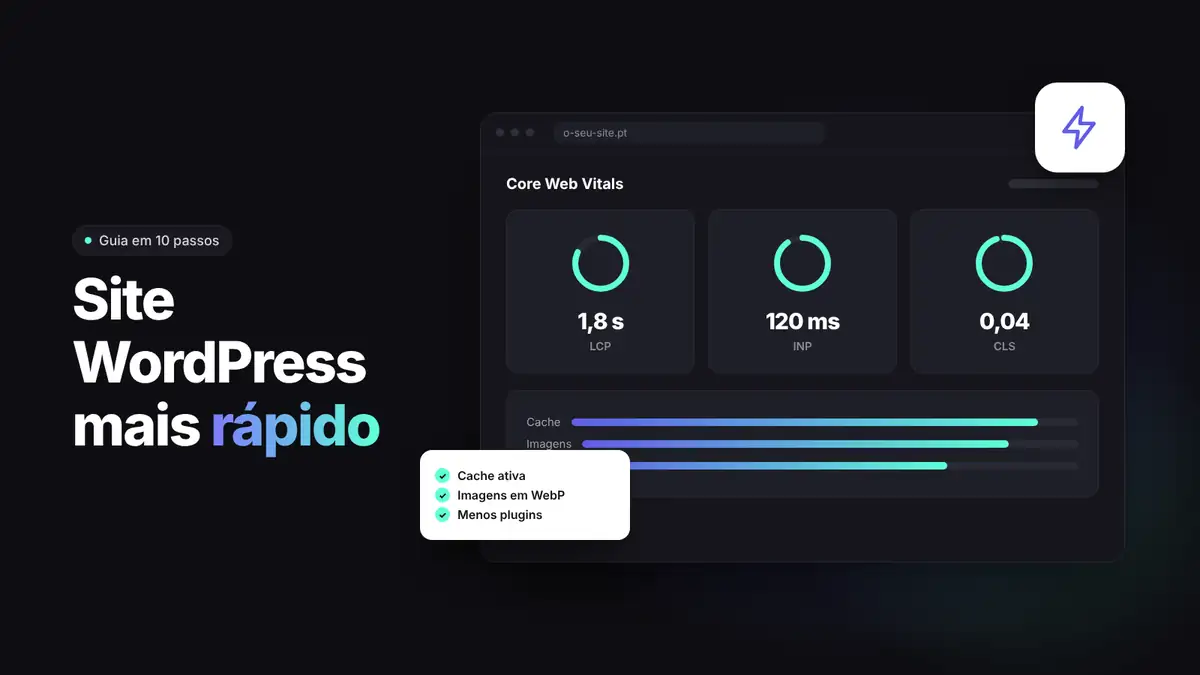
They are three metrics Google uses to assess the experience of people visiting a page. To pass, each one must be in the good range for at least 75 percent of visits.
| Metric | What it measures | Good value |
|---|---|---|
| LCP | Time until the largest visible element appears | Up to 2.5 seconds |
| INP | How quickly the page responds to clicks and taps | Up to 200 milliseconds |
| CLS | How much the page jumps while loading | Up to 0.1 |
10 steps to a faster WordPress website
1. Choose quality hosting
No plugin makes up for a slow server. Choose hosting with servers in Europe, SSD or NVMe storage, a recent PHP version and server side caching, such as LiteSpeed.
2. Turn on page caching
Caching stores a ready version of each page, so the server does not have to build it on every visit. Use the plugin that matches your server, for example LiteSpeed Cache on a LiteSpeed server, and never run two caching plugins at once.
3. Optimise images
- Use WebP or AVIF instead of JPG and PNG.
- Upload images at the size they are displayed.
- Turn on lazy loading for images below the fold.
- Never lazy load the main image at the top, which is usually the LCP element.
4. Use fewer plugins
Remove plugins you do not use and avoid those that load scripts on every page. See which plugins are truly essential.
5. Choose a lightweight theme
Use a single theme and a single page builder. Turn on only the theme modules and features the site actually uses.
6. Control your fonts
Every font family and weight is one more file. Use two families at most, few weights and, if possible, host the fonts on your own site.
7. Defer third party scripts
Chat widgets, ad pixels, maps and embedded videos are heavy. Load them after the page or only when the visitor interacts.
8. Use a CDN
A CDN delivers images and files from servers close to the visitor. It is especially useful if you sell to several countries.
9. Clean the database
Old revisions, spam comments and temporary data pile up over the years. Clean them regularly and always make a backup first.
10. Keep PHP up to date
Newer PHP versions are faster and more secure. Check in your hosting panel which one the site uses and test before switching.
Special care for a WooCommerce store
- Exclude the cart, the checkout and the account page from caching.
- Turn on High Performance Order Storage, known as HPOS.
- Limit heavy filters on category pages.
- Use lightweight thumbnails in product listings.
- Place a test order after every optimisation.
If you are just starting, also see how to create an online store with WooCommerce and how to build a WordPress website.
Common optimisation mistakes
- Chasing a score of 100 in PageSpeed instead of improving the real experience.
- Running two caching or optimisation plugins at the same time.
- Lazy loading the main image at the top of the page.
- Combining and minifying everything without testing, breaking menus or checkout.
Frequently asked questions
Does website speed affect SEO?
Yes. The Core Web Vitals are part of the experience signals Google takes into account. Content relevance still matters more, but a fast site converts better and loses fewer visitors.
What is a good PageSpeed Insights score?
Above 90 is considered good. More important than the score is passing the Core Web Vitals with real visitor data.
What is the best caching plugin for WordPress?
It depends on the server. On a LiteSpeed server, LiteSpeed Cache is usually the best choice. On other servers, WP Rocket is a widely used paid option.
Why is my site fast on desktop and slow on mobile?
Phones have weaker processors and slower networks. Large images and many scripts weigh much more on mobile.
At CarvFlow we build lightweight WordPress and WooCommerce plugins. Explore our plugins.